Twitter Spaces, now rebranded as X Spaces, lets you host and join live audio conversations directly within the platform. Think of it as interactive digital radio where hosts control who speaks, listeners can request to join the conversation, and everything happens in real time.
Spaces creates an opportunity for authentic engagement that polished podcasts and edited videos can’t match. You’re having real conversations with your audience—the barrier to entry is low, the engagement potential is high, and the platform makes it surprisingly simple once you understand the basics.
The key is understanding the distinct roles, knowing how to find active Spaces, and mastering the mobile-first controls that make these audio rooms work. In this guide, I’ll walk you through everything you need to start hosting, joining, and leveraging Spaces for your brand.
X Spaces is a live audio feature, similar to the once more popular Clubhouse (which Spaces was developed as a reaction to), built directly into the X platform. When someone you follow hosts a Space, it appears as a purple bubble at the top of your timeline, making active conversations immediately visible.
The feature works like a virtual stage.
Hosts control the room, speakers share their perspectives, and listeners tune in without speaking. Unlike recorded podcasts, everything happens live.
That immediacy creates authenticity. People hear unscripted thoughts, real-time reactions, and spontaneous insights that polished content can’t replicate.
The platform initially limited Spaces to users with at least 600 followers but opened access to all Android and iOS users in October 2021. This democratization means anyone can host, regardless of follower count.
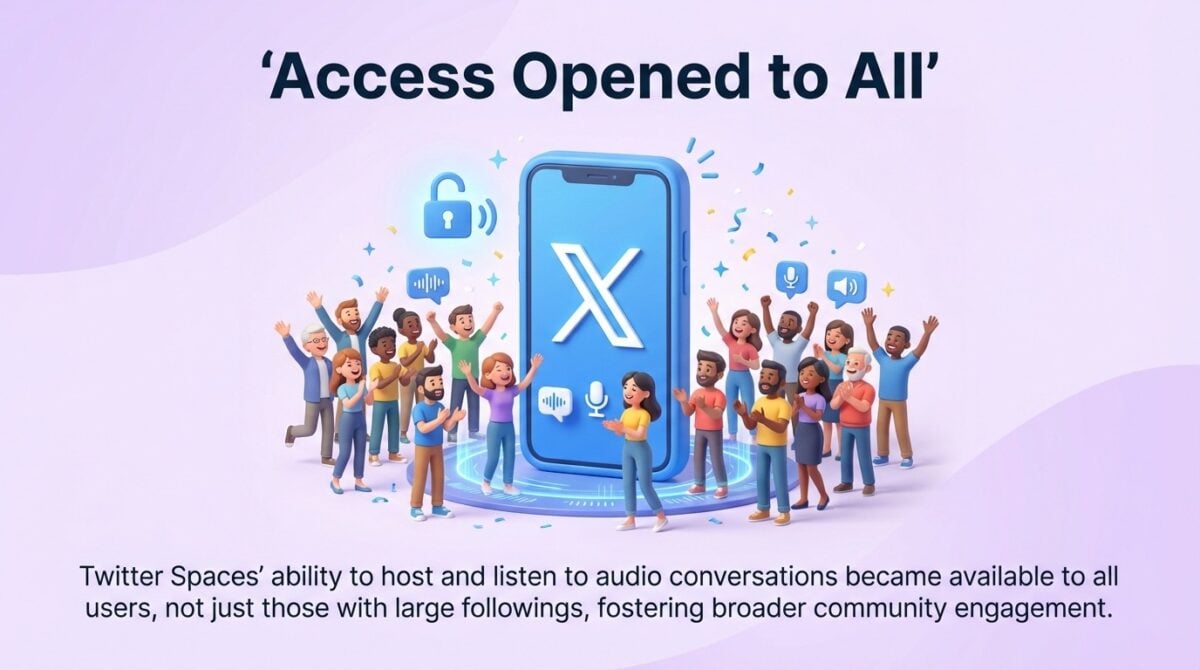 Access opened to all mobile users in October 2021, removing the follower threshold.
Note: Twitter Spaces was rebranded to X Spaces following Twitter’s rebrand to X in 2023. The feature and functionality remain the same—only the name changed.
Why Mobile Matters
X Spaces is designed for mobile devices first. The mobile app gives you full hosting capabilities, speaker controls, and all moderation features.
Desktop users face significant limitations. According to platform documentation, desktop users can only listen to Spaces, not host or speak.
The Three Core Roles
Every Space operates with three distinct participant types.
Hosts create the Space, set the topic, invite speakers, and control the conversation. They can remove participants, end the Space at any time, and decide whether to record the session. The host role carries the most responsibility and the most control.
Co-hosts share management duties with the primary host. They can invite speakers, manage speaking permissions, and help moderate the conversation. This role works well for panel discussions or when you need help managing a large audience.
Speakers have permission to talk in the Space. Hosts invite speakers directly, or listeners can request to speak. Speakers participate in the conversation but don’t have moderation powers.
Listeners join the Space to hear the conversation. They can’t speak unless promoted to speaker status. Listeners interact through emoji reactions and by requesting speaker access.
Benefits of Using Twitter Spaces for Your Brand
Unlike standalone apps like Clubhouse, Spaces lives within X’s existing network. You don’t need to build a new audience or download another app—your followers are already there.
Businesses gain specific advantages from live audio that other content formats can’t deliver. The key is understanding how to leverage these benefits strategically.
Building Authentic Audience Connections
Live audio removes the polish that creates distance between brands and audiences. People hear real voices, natural speech patterns, and unscripted responses.
This authenticity builds trust faster than written content. Your audience hears you think through problems in real time, admit uncertainties, and respond to unexpected questions.
Overwhelmed by Digital Marketing?
Just released: my new book to help small businesses, entrepreneurs, and marketers master digital marketing in today’s digital-first world.
Drawing on my Fractional CMO experience, Digital Threads simplifies complex strategies into clear, actionable steps for success.
Transform your business today—grab your copy! Click the cover or button below to buy on Amazon.
The conversational format feels personal. Even with hundreds of listeners, Spaces create intimacy that broadcast media rarely achieves.
Further Reading: 9 Ways to Increase Your Twitter Engagement Today
Hosting Interactive Q&A Sessions
Spaces excel at direct audience interaction. Announce a Q&A session, go live, and take questions from listeners who request to speak.
This format works for product launches, addressing customer concerns, or providing expert advice. The real-time nature means you can clarify confusion immediately.
For example, SaaS companies use Spaces to explain new features, gather user feedback, and troubleshoot common issues. The live format reduces support burden while increasing customer satisfaction.
Collaborating with Industry Peers
Co-hosting Spaces with complementary brands or industry experts expands your reach. Each co-host brings their audience, exposing your brand to new potential customers.
These collaborations work best when brands share audiences but don’t compete directly. A marketing agency might co-host with a design firm, or a fitness coach with a nutritionist.
The collaborative format provides more value than solo content. Multiple perspectives create richer discussions that benefit all participants.
Creating Behind-the-Scenes Content
Spaces work well for showing the human side of your business. Host team introductions, discuss company culture, or share the story behind recent decisions.
This transparency differentiates you from competitors who maintain corporate distance. People buy from people, and Spaces let your team’s personalities shine.
Consider regular behind-the-scenes sessions. Monthly team Spaces, founder Q&As, or “day in the life” conversations build ongoing audience relationships.
How to Find and Join Twitter Spaces
Discovering active Spaces requires knowing where the platform surfaces them. X uses multiple discovery methods to help you find conversations worth joining.
Finding Spaces on Your Timeline
Your home timeline is the primary discovery tool. When someone you follow hosts or speaks in a Space, the purple bubble appears at the top of your feed.
The bubble shows the host’s profile picture, the Space title, and a participant count. Tap it to join immediately. The placement at the top ensures you never miss live conversations from your network.
Using the Spaces Tab
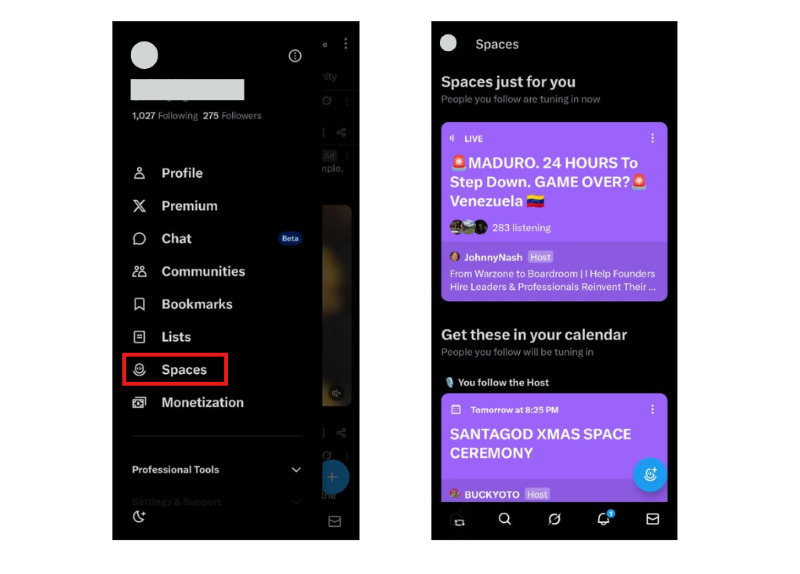
The dedicated Spaces section shows all available live audio rooms. Open the X app, tap your profile picture to access the side menu, and select “Spaces.”
This page lists ongoing Spaces, trending conversations, and scheduled upcoming sessions. You’ll see Spaces from accounts you follow plus popular conversations happening across the platform.
The Spaces tab helps you discover conversations outside your immediate network. Browse trending topics, explore new voices, and find niche discussions relevant to your interests.
Joining a Space as a Listener
Joining requires just a single tap. When you find a Space you want to hear, tap the purple bubble or the Space listing.
You enter as a listener by default. The interface shows active speakers at the top, the host’s controls below, and listener reactions at the bottom.
As a listener, you can quietly observe the conversation, send emoji reactions, and request to speak if you want to contribute. No pressure to participate actively.
Requesting to Speak
When you want to join the conversation, tap the “Request” button at the bottom of your screen. This sends a notification to the host.
The host sees your request and decides whether to promote you to speaker. If accepted, your microphone activates and you can contribute to the discussion.
Not every request gets accepted. Hosts manage conversation flow and may limit speakers to keep discussions focused. Don’t take rejection personally.
Further Reading: The 25 Best Twitter Tools for Marketing in 2025
Starting your own Space gives you control over the conversation topic, the speakers, and the overall direction. The mobile app makes hosting straightforward.
Starting a Space on iOS or Android
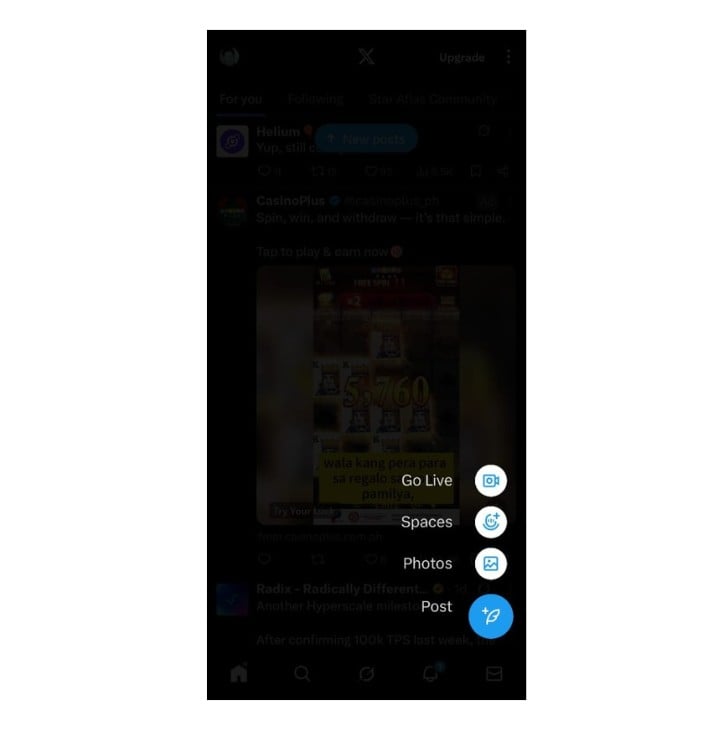
Open the X app on your mobile device. You’ll see the compose button, typically a plus icon or tweet button.
Long-press the compose button. A menu appears with several content options. Select the Spaces icon, usually represented by a waveform or microphone symbol.
The Space creation screen opens. Name your Space with a clear, descriptive title that tells potential listeners what you’ll discuss.
Choose your settings before going live. Decide whether to allow everyone to request speaking access or limit requests. Enable recording if you want to save the conversation for later playback.
Tap “Start your Space” to go live. Your Space immediately appears on your followers’ timelines as a purple bubble.
Inviting Initial Speakers
You don’t need to start alone. Before or after going live, invite specific people to join as speakers.
Tap the share icon within your Space. Search for accounts you want to invite. Send direct invitations that appear as notifications for those users.
Starting with a co-host or initial speakers creates momentum. Empty Spaces struggle to attract listeners. Having active conversation when people arrive increases retention.
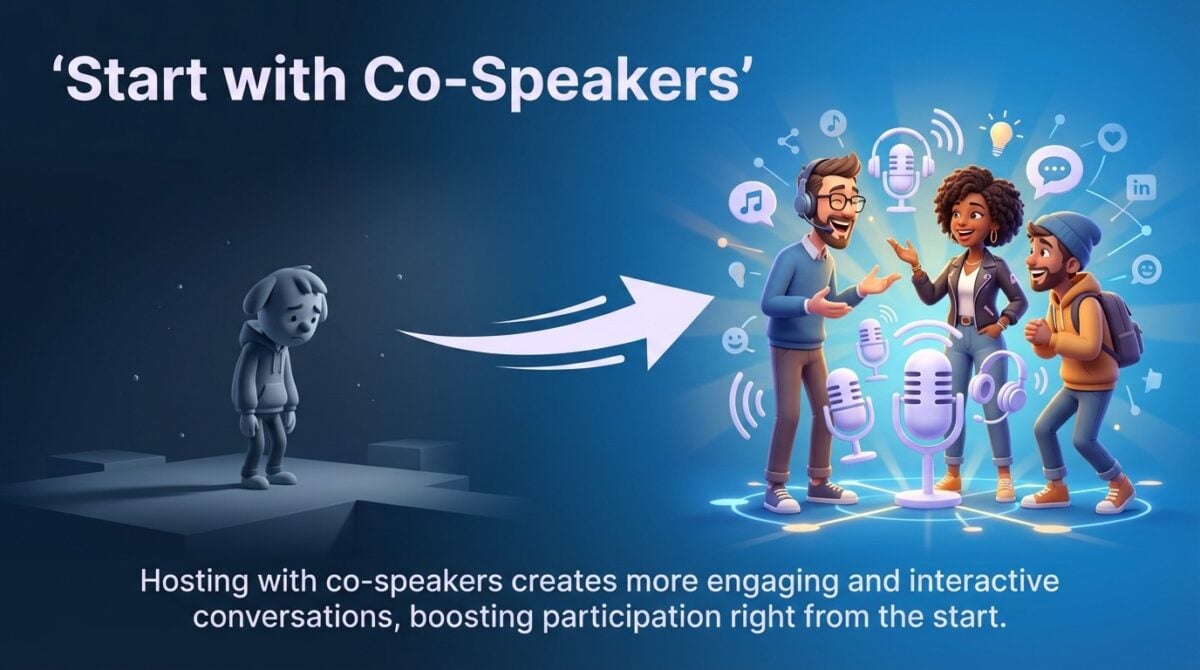 Invite a co-host or initial speakers to seed engagement and avoid a quiet start.
Setting the Topic and Description
Your Space title serves as the primary attraction. Make it specific, benefit-focused, and clear about what you’ll cover.
Good titles: “Marketing Strategy for Small Business Owners” or “Tech Industry Career Advice Q&A.”
Weak titles: “Random Thoughts” or “Just Talking.”
The description field lets you add context. Use it to set expectations, list key topics, or share ground rules for participation.
Managing Recording Settings
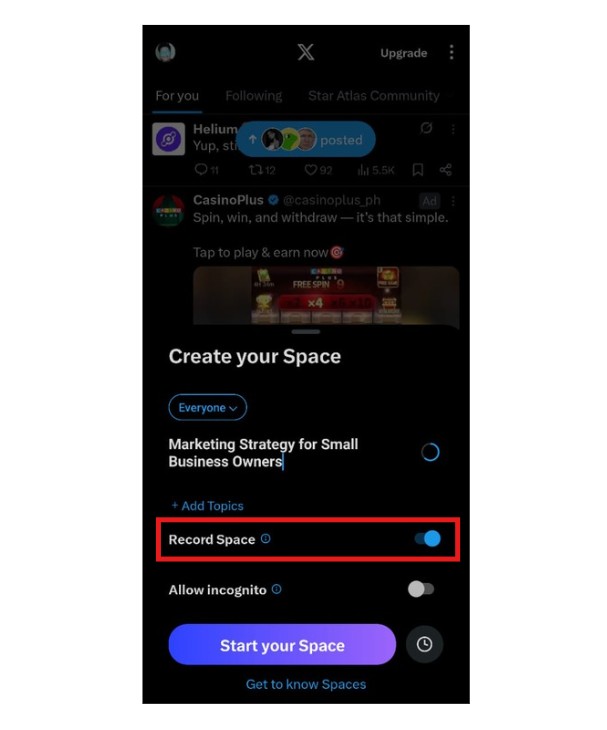
Recording your Space preserves the conversation for people who missed it live. Enable recording before starting if you want this option.
Recorded Spaces become available immediately after you end the session. They remain accessible on your profile, allowing followers to listen on their own schedule.
The platform automatically notifies participants when recording is enabled.
Managing Your Space as Host
Hosting requires active management. The controls give you significant power to shape the conversation quality and participant experience.
When listeners request to speak, you’ll see notifications in your host panel. Tap the request to view the person’s profile.
Review their account before accepting. Check if they’re relevant to the topic, whether they’ve been respectful in past interactions, and if they align with your Space goals.
Tap “Accept” to promote them to speaker. Their microphone activates and they can contribute immediately.
You can also proactively invite specific listeners to speak. Scan your listener list, find people you want to hear from, and send speaker invitations directly.
Muting and Removing Participants
Sometimes speakers disrupt conversations. You have tools to manage this.
Mute individual speakers by tapping their profile icon and selecting “Mute mic.” This temporarily silences them without removing them from the Space entirely.
For more serious disruptions, remove participants completely. This blocks them from the current Space and prevents them from rejoining.
Use these controls judiciously—balance maintaining quality conversation without over-moderating.
Assigning Co-host Permissions
Co-hosts help you manage larger Spaces. They can approve speaker requests, mute participants, and share moderation duties.
To assign a co-host, tap the participant’s profile icon and select “Make co-host.” Choose people you trust to maintain conversation quality.
Co-hosts work particularly well for panel discussions, extended Q&A sessions, or when managing high-traffic conversations. The shared responsibility prevents host burnout.
Further Reading: 11 Ways to Use Twitter Polls for Marketing (with Examples)
Ending Your Space
When you’re ready to conclude, tap “End” in your host controls. The platform prompts you to confirm the action.
Ending the Space disconnects all participants immediately. If you enabled recording, the saved audio becomes available within minutes.
Take a moment to thank participants before ending. A graceful exit encourages people to return for future Spaces.
Twitter Spaces Best Practices and Tips
Success in Spaces requires more than just technical knowledge. The format demands specific strategies that maximize engagement and value delivery.
Scheduled Spaces perform better than spontaneous ones. Give your audience notice so they can plan to attend live.
Tweet about your upcoming Space multiple times. Share the topic, date, time, and why people should attend. Include a clear value proposition.
Pin the announcement tweet to your profile for visibility. Post reminders 24 hours before, one hour before, and when you go live.
 Promote your Space ahead of time—topic, date, time, and value—to boost live attendance.
Starting with Prepared Topics
While Spaces feel spontaneous, preparation matters. Outline your main discussion points, prepare opening remarks, and have questions ready for speakers.
This structure prevents awkward silences. You’ll have fallback topics when conversation lulls, ensuring continuous value delivery.
Balance preparation with flexibility. Let natural conversation flow, but use your outline to maintain direction and momentum.
Further Reading: Twitter Chats: The Definitive Guide to Hosting (or Joining)
Keeping Spaces Focused and Time-Bound
Set clear time limits. Announce at the start how long you’ll run, typically 30-60 minutes for most topics.
Time constraints create urgency. People stay engaged knowing the session will end. Open-ended Spaces lose energy as participants drift away.
Stay on topic. When conversations wander, gently redirect to your core theme. Focused Spaces deliver more value than rambling discussions.
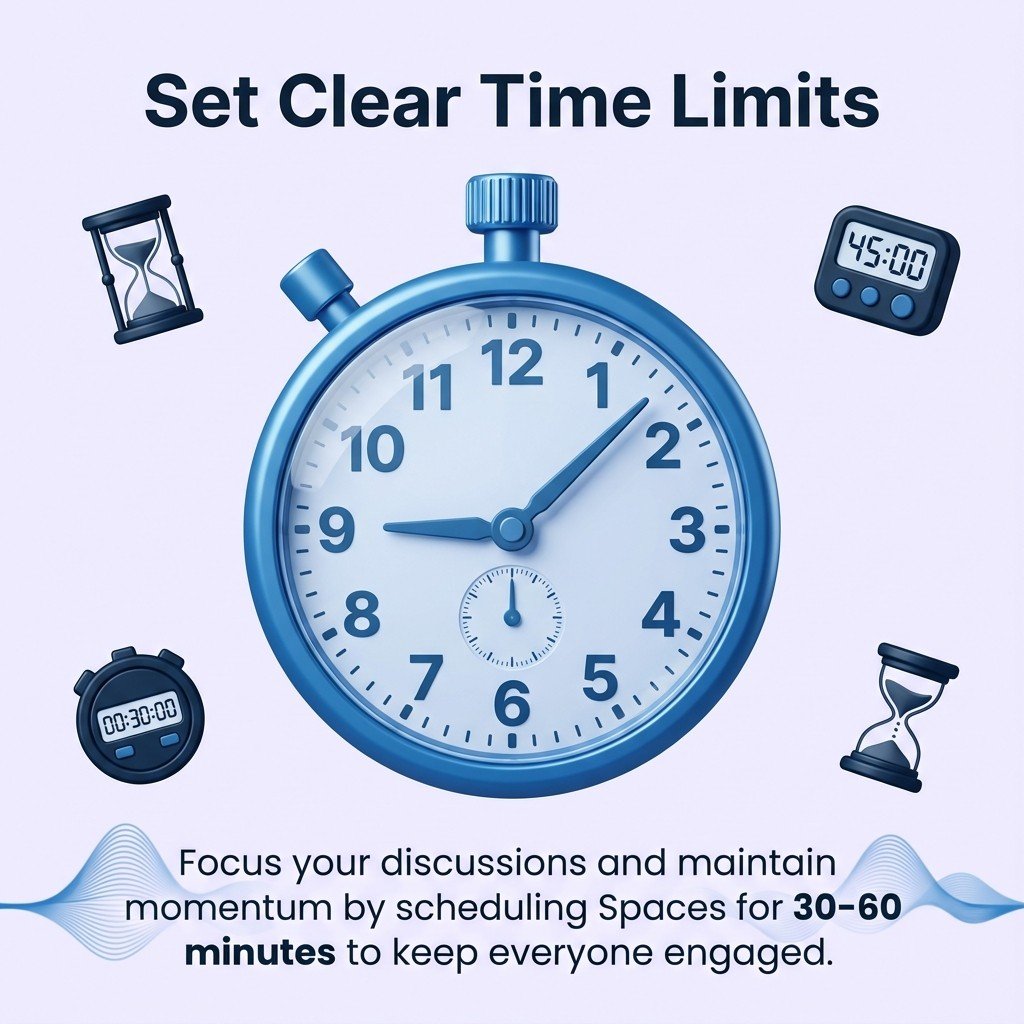 Set a clear 30–60 minute window and stick to it to keep energy high and focus sharp.
Encouraging Audience Participation
Ask direct questions to listeners. “Anyone dealing with this challenge? Request to speak and share your experience.”
Respond to emoji reactions. “I see lots of fire emojis, glad this resonates!” Acknowledging listeners makes them feel heard even without speaking.
Use polls within your Space to gather quick feedback. The interactive elements maintain engagement throughout the session.
Following Up After Your Space Ends
Tweet a summary thread highlighting key insights from the conversation. Tag speakers and thank participants for joining.
If you recorded the Space, share the link with followers who missed it live. Add context about what they’ll learn by listening.
Consider turning valuable insights into written content. Blog posts, Twitter threads, or social posts extend the value beyond the live session.

Further Reading: How to Use Twitter for Beginners: 15 Tips for Success!
Tap your profile picture and select “Spaces” from the menu. Active Spaces also appear as purple bubbles at the top of your home timeline.
Can I schedule Spaces in advance?
Yes. Tap the calendar icon when creating a Space to set a future date and time. Scheduled Spaces appear on your profile and in followers’ calendars, helping you build anticipated attendance.
Do I need a certain number of followers to host?
No. The feature now works for all mobile users regardless of follower count.
How long can a Space last?
Spaces have no time limit, but most successful sessions run 30-60 minutes to maintain audience engagement. Plan your time based on your topic depth and audience attention span.
Why can’t I join a Space?
The Space may have ended, been set to private, or reached capacity. Technical issues like poor connection or an outdated app can also prevent access. Try refreshing your timeline, updating the app, or restarting X.
Can you go back and listen to Spaces?
You can only replay Spaces if the host enabled recording before starting. Without recording enabled, conversations aren’t available after they end.
No, hosting and speaking requires the mobile app. Desktop users can only listen.
What happens if I lose internet connection during my Space?
If you’re hosting, the Space continues but you’re temporarily removed until you reconnect. Speakers and listeners are disconnected and must rejoin manually. Having a co-host provides backup if connectivity issues arise.
How do I build an audience for my Spaces?
Promote upcoming sessions with multiple announcements, use relevant hashtags, collaborate with co-hosts who have established audiences, and maintain consistency with regular scheduling.
Actionable advice for your digital / content / influencer / social media marketing.
Join 13,000+ smart professionals who subscribe to my regular updates.