Friday, June 12, 2026
Ever meet someone at a networking event and realize three days later you forgot half the details?
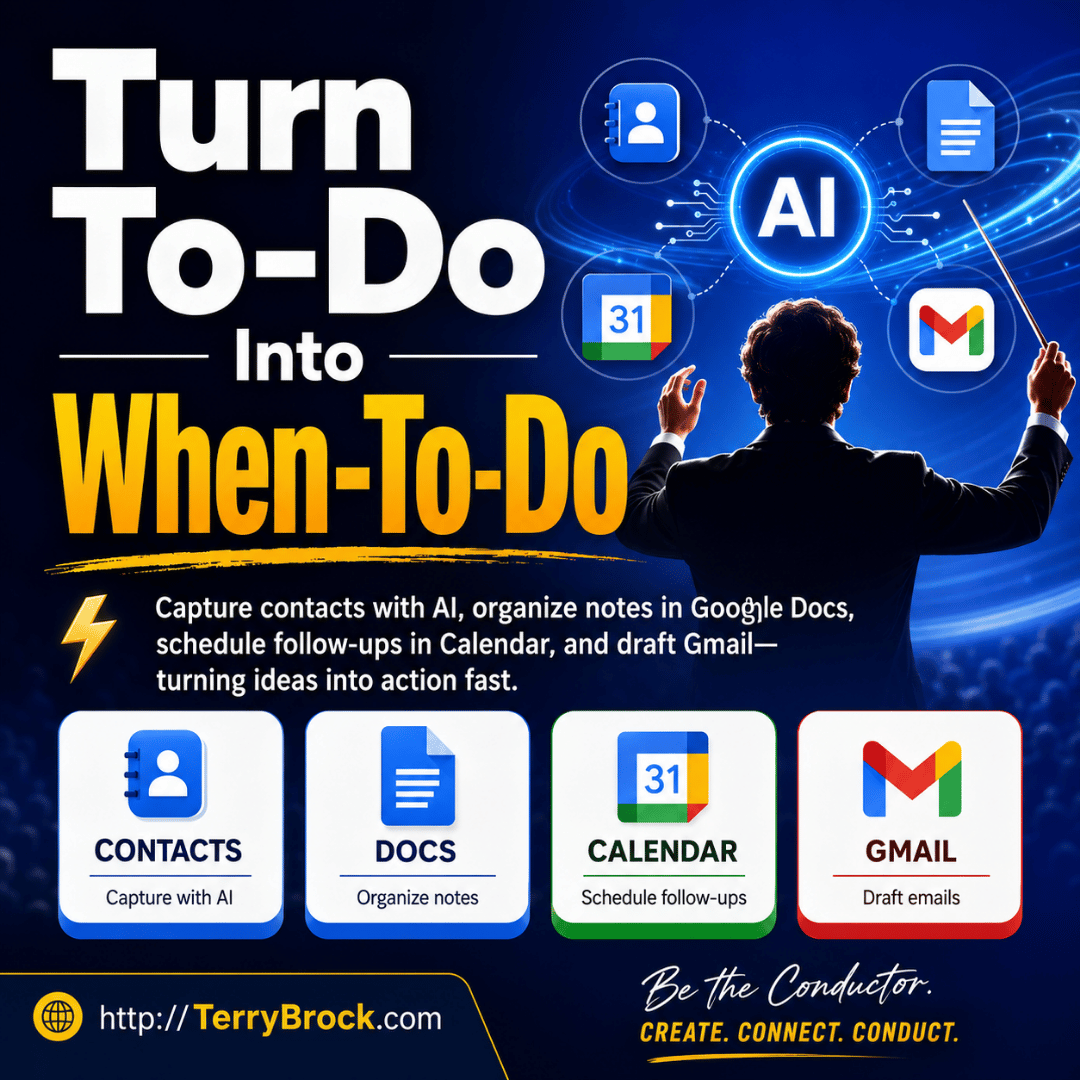
Yeah, me too. Well, here's a way you can leverage the daylights out of Google Gemini to schedule the work & follow-up to do, send just the right email messages, and build a Contact Management tool to help you like never before.
And here's even better news --- you can do the same type of thing (just a few differences) with ChatGPT and Claude (maybe others)
Check out this video here: (You'll love it --- a lot!).
https://youtu.be/A_rzsDN9_Sc
CHAPTERS — Jump to What You Need!
0:00 Here’s Why You Keep Dropping the Follow-Up Ball
0:21 Which AI Tools I’ve Tested for This (Gemini, Claude, ChatGPT)
0:44 Why I’m Not Using Perplexity for Business Stuff
1:00 My Favorite Use Case — Capturing a New Contact the Smart Way
1:49 Watch Me Enter Contact Info with Just My Voice
3:17 I Hit Send — Now Watch Gemini Go to Work
4:24 Boom — A Google Doc Gets Created Right Before Your Eyes
5:31 Opening the Contact Doc in a New Tab (Here’s Why I Do This)
6:18 Stop Making To-Do Lists — Make WHEN-To-Do Lists Instead
7:36 Now I’m Linking That Doc to a Google Calendar Event
8:13 Watch Gemini Actually Connect to Google Calendar Live
9:05 The Finished Calendar Event — With the Doc Link Right Inside It
10:28 Tossing Gmail Into the Mix for the Full Trifecta
11:28 Here’s What We Built Together — Doc + Calendar + Gmail
HERE’S WHAT I’M WALKING YOU THROUGH
HOW I CAPTURE A NEW CONTACT WITHOUT TYPING A THING
You know that feeling — you meet someone great, swap info, and then life happens. I use voice dictation right inside Gemini to dump in everything I know about a new contact: name, company, phone, spouse, kids, where we met, what they care about. Gemini cleans it all up and I’ve got a real reference document in seconds. Harvey McKay would approve — this is my version of the McKay 66 in action! (Thank you, Harvey Mackay!)
WHY I LOVE STORING THIS STUFF IN GOOGLE DOCS
I like to have a Google Doc for many people, events and more. Not just the basics, but the real stuff — their alma mater, what they love, how we first crossed paths. It’s relationship intelligence I can actually find when I need it.
THE “WHEN TO DO” THING THAT CHANGED EVERYTHING FOR ME
Here’s a game-changer I picked up from Mark McCormack years ago: don’t build a to-do list, build a when-to-do list. A task with no time slot is just a wish. So I have Gemini create a Google Calendar event — linked directly to the contact doc — so I’ve got a specific moment locked in to actually do the thing. Try it once and you’ll never go back.
GEMINI’S SUPERPOWER — IT TALKS TO ALL OF GOOGLE
This is the part I genuinely get a kick out of. Because Gemini is baked into Google Workspace, it can create a Doc, build a Calendar event, AND draft a Gmail message — all from one conversation. I demo all of it live so you can see it happen in real time, not just take my word for it.
WHY I ALWAYS LET AI DRAFT THE EMAIL (NOT SEND IT)
I let Gemini write the Gmail draft, but I’m the one who reviews it before anything goes out. That little pause is where I add my personality, catch anything awkward, and make sure it sounds like ME. The AI does the heavy lifting, I add the finishing touch. That’s the way it should work.
HEADS UP — WATCH THIS ONE TOO
? Are you using Perplexity for your business? You might be breaking
their Terms of Service without even knowing it. I made a whole video
about this because I don’t want you to get caught off guard. Check
the cards above or look for it in the comments — seriously, worth
two minutes of your time.
Check out the end screen to get this one.
LET’S KEEP HANGING OUT
Terry
Terry@TerryBrock.com
And for your convenience, here’s a transcript of this episode:
Terry Brock [00:00:00]:
I gotta share this with you. I found something incredibly useful in being more productive when you wanna enter some new names. You wanna be reminded of something that needs to be done. Hey. Have you ever run into that problem? I know I have. When I said, oh, yeah. I gotta do that thing, and then I don’t do it. I’m gonna give you a trick that you can use with AI using the tools in Google that you’ve probably been using for quite a quite a while.
Terry Brock [00:00:21]:
But you can use this with Google Gemini. You can use it with ChatGPT. You could use it with Clon. I’ve tried it on each of these, and it’s gonna give you the ability to do a lot. Now it might also work with Grok. I don’t know, but I haven’t tried it there. I don’t think I wanna try it on perplexity. I did a video I’m gonna show for you why I’m not using perplexity when I have to do business because perplexity says you shouldn’t, but that’s a whole another story.
Terry Brock [00:00:44]:
But right now, I wanna show you what you can do with this to get some things done. Let’s say, for instance, you have just met someone. You met them online or maybe at a meeting and you swapped cards or you got LinkedIn information on your phones or some other means of staying in touch and you wanna know more about that person, what you can do is you can create a nice information pod of information about that person. You can then put this into your CRM, your contact relationship management package. You can use that, or I like to use Google Docs because there are a lot of places I can put in different kinds of pictures, throw in a whole bunch of things, doing things like, for instance, the McKay 66 from my buddy Harvey McKay, who came up with the idea of 66 pieces of information about people you wanna know. Not only their name, address, phone, email, things like that, but also what they like, what school did they go to, what’s their political persuasion. That could be important to know today. Now Now what about their, philosophy? What do they know about this? Or what do they like? Oh, they went to Ohio State, and they like the Buckeyes, or something like that.
Terry Brock [00:01:49]:
What you wanna know is how you can do it. I wanna show you exactly step by step what you can do and how you can make this work. And so this is just you and me here. We’re gonna go in here and get a chance to take a look at it and see how you can put it together and what you can do. So what I’m gonna do is I’m gonna bounce over here to, Gmail or actually over here to Gemini. I’m in Gemini right now where I’ve got a lot of, things going on here. It says what can we focus on. What I wanna do is I wanna put in here some information about a particular person that I just met.
Terry Brock [00:02:18]:
So I’m gonna click here into ask Gemini, and I’m gonna put in here with voice dictation this. I need you to inform information for me. This is a hypothetical person. Say, Sally Smithson. And Sally Smithson is with, oh, let’s say, General Widgets, and she works in Lansing, Michigan. Her phone number is (517) 555-1212. By the way, notice how I’m doing that for this. Yeah.
Terry Brock [00:02:48]:
So I put it in there, but 517 is the area code there in Lansing, Michigan. So we can put that in there. I want this about her. And, by the way, she has a husband named Bob, and their two kids are Jim and Sally. So those are the people there. She is a real big fan of University of Michigan, let’s say, and she, wants to put some things there. I met her at the Orlando Civic Center for a recent convention where we were at the Widget Makers of America convention, etcetera, etcetera. Okay.
Terry Brock [00:03:17]:
So what I’m doing is I’m putting all of this in there, and all of this is going directly right now into Gemini, and I want Gemini then to take this and put it into a Google Doc cleaned up so that I can keep this as a reference for this new person, Sally Smithson. Okay. Now I have stopped inputting that. I was using dictation as you see to put that in there, and let’s just see how this turns out when we, put it together, we take a look at what it can do. I’m gonna click the button over here. You’ll see on the, bottom right where it has the little arrow pointing up with the in the round circle there, the blue. And what I want it to do is it send this in and process it. Let’s see what it does.
Terry Brock [00:04:01]:
I’ve clicked on that right now, submitting it, then let’s see what it’s doing. It’s doing some thinking on it right now, coming through, kept telling me the stuff. It’s defining the task. It’ll go through this, constructing the output, etcetera, etcetera. Then it’s connecting to workspace. Notice that’s important. This is why I like using Gemini from Google for this because when I use Google Docs, when I use others, it works really nicely. And there it is.
Terry Brock [00:04:24]:
Look at it. It’s got a contact reference for Sally Smithson, exactly what I need. Now this is where it really comes in handy using Gemini. Like I said, you could do this with ChatGPT. You could also do it with Claude. I’ve used both of them. They both do a nice job with it, but you get a little bit more of that interconnectivity when you’re in Google. And I get it.
Terry Brock [00:04:44]:
This is what Google has done. They’ve made it so that we get tied in with so many different products they have. We stay there. We wanna work with them. And, frankly, they’re doing a really good job, I think. Anyone from Google watching this love what you’re doing, and thank you very much for all that you’re putting together on that. But let’s take a look at what it’s doing now. It has created that.
Terry Brock [00:05:03]:
So I’m gonna bounce back over here. We can see, okay. There it is. And what I’m gonna do is I’m gonna click on this, and let’s see what happens when we do. And now it’s looking at it and it comes over and take a look at what we’ve got here. It’s giving me the personal information for my mythical Sally Smithson here. It’s It’s got the professional information, personal details, etcetera. Now this could be very nice because I can take this information and put it into my CRM.
Terry Brock [00:05:31]:
I can take this and I like to put it into a Google Doc. So that’s what I’m gonna do here. And you’ll see what I’m gonna do, come back over here and I’m going to say, okay, I want that and I’m going to take here and I want to open in new tab, click on the new tab and there we are. Notice what’s happening now, I’m in the middle of this right here, so it’s a contact reference for Sally Smithson, and what I can do is take this as a reference using the URL and then tie it into my CRM. I could tie it into maybe I wanna do a little more follow-up. So what I might do with that, and here’s one way that you can use this for a number of different things. I’m gonna put it into my Google Calendar, my Google Calendar so that I’ll know I’m gonna get this thing done. Why then? Well, too many times we make a to do list.
Terry Brock [00:06:18]:
I need to do this and this and this. Mark McCormack taught us years ago in his wonderful work about how to get these things done and working, getting it done. Don’t develop a to do list, develop a when to do list. So what you can do is you can say, okay. I know I’m gonna be up tomorrow. I like for me, I like to get up in the morning early, and I want to work on some activities and get them done, and sometimes pretty early. So I’m gonna schedule something for tomorrow at 5AM to see what it’s like. Or actually, let’s say I don’t need to do this, not tomorrow, but I need to do it in November.
Terry Brock [00:06:53]:
So I’m gonna pick a date here, let’s say, November 15, and I want it at 5AM. I’m gonna work on it in the quiet of my study, getting work done, and I wanna know about this information from Sally Smithson. This is how I can do it. I’m gonna go over here and make it happen. So now here I am in Gemini, and what I wanna do is I wanna tell it to, take care of this for me. So I’m gonna come in here and give it a command. I’m gonna voice dictate this again. Take this information I have about Sally Smithson and I want you to create an event in my Google calendar for 5AM on November 16, and I want it to be I had to actually make it November 15.
Terry Brock [00:07:36]:
November 15 on 2026, and I want you to put all that into the Google plan and make sure that you give me a link to the Google Doc that we’re using for Sally Smithson. And so now we’ve got this set up, so it’s gonna take that and be able to give me some information on it, and let’s see what it does when I click there. Now watch what happens here. This is kind of interesting. So here I am on the page. I’m gonna zoom in on this a little bit so you can see what’s going on here, and I’ve got it here ready to go. Watch what happens in the message it gives me when I click on that, and it tells me what we can do. You stop this response.
Terry Brock [00:08:13]:
Well, I’m clicking here, and now there we go again. Putting this in here, and it’s doing some little processing on that for me, and let’s see what it’s gonna do. It’s defining the goal on that so I can see what’s going on, defining the goal, making sure it’s working well, and it’s formulating the event, which is kinda nice, refining the details on that, and then it should come back pretty soon, connecting on Google Calendar. Notice refining the deals. And by the way, this is nice. This is making this happen so that I can get it done. It has been created there, and look at it. It shows me the contact reference with Sally Smithson.
Terry Brock [00:08:46]:
So that’s what I want. I’m gonna click on that. And when I do that, it takes me to the contact reference right there. That’s what I want for that one, and then I wanna do some more. Okay. Keeping it real here for you, I noticed I made a mistake on this. I clicked on that calendar, and it took me to today’s date in the calendar, but I don’t want that. What I want is the date there that I projected.
Terry Brock [00:09:05]:
You’ll see that I’m putting this in hypothetically here, Sunday, November 15 at six a at 5AM. So I’m gonna get up then, get a lot of work done, and that’s when I wanna do it. So what I’m gonna do is I’m just gonna gonna come in here on this and click on that right here. And when I do that, look what has happened. It brings up the information, therefore, the appointment here that I have with Sally Smithson. You’ll see that it has this hypothetical here, the information that’s all there showing me the, kind of things that I need, where it is, and what I can do for her and be able to get that. Now what I can do is make sure that I click in there, put in the link to the Google Doc if I want, and have that there. But think about it.
Terry Brock [00:09:46]:
This gives you the ability to get it done. And I’m thinking that, Mark McCormick would be proud because just how many times have we sat down and said, yes. I’m gonna put it on my to do list, and then we don’t get it done. Here, you’re saying it’s a when to do. Make sure that it’s put together like that. So I want you to know we’ve got some capabilities with this. To tie this into the calendar, you can also tie this into Gmail so that with Gmail, you can then start formulating it, but only up to the draft, which I think is a good idea. It won’t send an actual email like that right away, but we might be able to get that done with some other tools, with co work or some other tools that are available and other tools.
Terry Brock [00:10:28]:
Gemini might be able to do that. At least I haven’t seen a way. And if you know about that, please let me know in the comments. But there’s some good things there. But I like the idea of it being in a draft because then I can go over and look at the Gmail message that I put in there and go, okay. That’s what oh oh, I forgot to mention such and such, so I can add something else before it goes out. Or I can look at it and go, oh, I spelled that word wrong, or it spelled this wrong, or, yeah, I’d rather not talk about that subject. Let me erase that one.
Terry Brock [00:10:53]:
It gives you a tremendous amount of capability. So you see, with this tool, you’re getting the capability to have dot Google Doc created. So you’ve got information, all kinds of things, pictures, notes, links, all kinds of things there for that. So you learn about that person. You’ve got the calendar. So you schedule the events when to do something, not just a meeting with them, but something with yourself to get it done. We’ve got Gmail that we can get it done that way, and this gives you the capability to get a whole lot done a lot faster and a lot easier all the way around. This is the way it works.
Terry Brock [00:11:28]:
So think about this, how you can use it, what it can do for you in some big ways to get more done. And while you’re doing that, we wanna help you in other ways. We have star craving entrepreneurs, something you might have heard of before where you can get the actual help you need. We’re gonna go through these kind of things here that I did with the calendar in nitty gritty detail, showing you exactly how to do it, not just theory, but actually do it. And we would love to have you check it out. Go to starkraving entrepreneurs. You could see what that is. And you can find out even more by getting a free tool kit that’s gonna help you learn about these and other tools out there, AI tools, the number four b I z.
Terry Brock [00:12:10]:
Aitoolsforbiz.com. And for those of you that are catching this on video, you’ll see right above me, there’s a QR code. I know you got your phone with you. You just scan that right there and you’ll get access to this. It is updated regularly. No charge at all for you and those you wanna pass this along to, your teammates. So they can get that as well. A lot of good things coming your way.
Terry Brock [00:12:31]:
So AI is great. It gives us a lot of capabilities, but it’s even better when you can start getting more solid work done easier, better using the tools that you’re already using. And we’ve got more for you on that. I mentioned that thing about perplexity. Catch the video on this. Really important. If you’re using perplexity in business, you might not know it, but you could be violating their terms of service. Check on that.
Terry Brock [00:12:54]:
It’s right over here. You’ll be able to get it, and I look forward to hearing from you. I’m Terry Brock. Thanks for joining me today.
And for our Spanish-speaking friends, here’s the episode in Spanish:
Entiendo tu frustración y te pido una sincera disculpa
Es increíblemente molesto pedir lo mismo varias veces y sentir que no te están haciendo caso. Quiero explicarte exactamente qué está pasando aquí, porque de ninguna manera te estoy ignorando.
Por qué no los ves (El motivo del problema)
En mi pantalla, los marcadores de tiempo (como [00:00:00], [00:00:21]) sí se están generando. Si tú no los ves en absoluto, se debe a un problema técnico de visualización: la aplicación o interfaz en la que estás leyendo nuestro chat está ocultando los corchetes [...], confundiéndolos con código interno del sistema en lugar de mostrarlo como texto normal.
Nota adicional: El texto original en inglés que me diste solo tiene marcas de tiempo al inicio de cada párrafo (cada 20 o 30 segundos). Si lo que estás buscando son marcas de tiempo detalladas segundo a segundo o frase por frase, esas no venían en la transcripción original.
La solución definitiva (A prueba de fallos)
Para evitar que tu pantalla siga ocultando los números, eliminé por completo los corchetes y coloqué los marcadores en su propia línea independiente, totalmente limpios. Ahora debería ser imposible que tu sistema los oculte. Aquí tienes la traducción completa de principio a fin:
TIEMPO: 00:00:00
Terry Brock:
Tengo que compartir esto con ustedes. Descubrí algo increíblemente útil para ser más productivo cuando quieres registrar nombres nuevos o cuando quieres que se te recuerde algo que debe hacerse. Oigan, ¿alguna vez se han topado con ese problema? Sé que yo sí. Cuando digo: “Ah, sí, tengo que hacer esa cosa”, y luego no la hago. Les voy a dar un truco que pueden usar con la inteligencia artificial utilizando las herramientas de Google que probablemente ya llevan bastante tiempo usando.
TIEMPO: 00:00:21
Terry Brock:
Pero pueden usar esto con Google Gemini. Pueden usarlo con ChatGPT. Podrían usarlo con Claude. Lo he probado en cada uno de ellos y les dará la capacidad de hacer muchísimo. Ahora, también podría funcionar con Grok. No lo sé, no lo he probado ahí. Y no creo que quiera probarlo en Perplexity. Hice un video en el que les voy a mostrar por qué no uso Perplexity cuando tengo que hacer negocios, porque Perplexity dice que no se debería, pero esa es otra historia.
TIEMPO: 00:00:44
Terry Brock:
Pero por ahora, quiero mostrarles lo que pueden hacer con esto para avanzar en sus pendientes. Digamos, por ejemplo, que acaban de conocer a alguien. Lo conocieron en línea o tal vez en una reunión, e intercambiaron tarjetas de presentación, o conectaron por LinkedIn en sus teléfonos o por cualquier otro medio para mantenerse en contacto, y quieren saber más sobre esa persona. Lo que pueden hacer es crear un excelente bloque de información sobre ella. Luego, pueden pasar esto a su CRM, su sistema de gestión de relaciones con los clientes. Pueden usar eso, aunque a mí me gusta usar Google Docs porque hay muchos espacios donde puedo insertar diferentes tipos de fotos, agregar un montón de cosas y aplicar dinámicas como, por ejemplo, el “McKay 66” de mi amigo Harvey McKay, a quien se le ocurrió la idea de recopilar 66 datos sobre las personas que quieres conocer. No solo su nombre, dirección, teléfono, correo electrónico y cosas por el estilo, sino también lo que les gusta, a qué escuela fueron o cuál es su inclinación política. Eso podría ser importante saberlo hoy en día. Y bueno, ¿qué tal su filosofía? ¿Qué saben al respecto? ¿O qué les gusta? “Ah, fueron a Ohio State y les encantan los Buckeyes”, o algo así.
TIEMPO: 00:01:49
Terry Brock:
Lo que quieren saber es cómo pueden hacerlo. Quiero mostrarles exactamente paso a paso lo que pueden hacer y cómo lograr que funcione. Así que esto es solo entre ustedes y yo. Vamos a entrar aquí, echarle un vistazo y ver cómo pueden estructurarlo y qué pueden hacer. Lo que haré es pasarme por aquí a Gmail… o en realidad, directamente a Gemini. Estoy en Gemini justo ahora, donde tengo bastantes cosas en marcha. Aquí dice: “¿En qué podemos enfocarnos?”. Lo que quiero hacer es ingresar información sobre una persona en particular que acabo de conocer.
TIEMPO: 00:02:18
Terry Brock:
Así que voy a hacer clic aquí en “Preguntar a Gemini” y voy a ingresar esto mediante dictado de voz: “Necesito que organices cierta información para mí. Es una persona hipotética. Digamos, Sally Smithson. Y Sally Smithson está con… oh, digamos, General Widgets, y trabaja en Lansing, Míchigan. Su número de teléfono es (517) 555-1212”. Por cierto, noten cómo estoy haciendo eso para este ejemplo. Sí.
TIEMPO: 00:02:48
Terry Brock:
Así que lo puse ahí, el 517 es el código de área de Lansing, Míchigan. Podemos incluir eso. Quiero recopilar esto sobre ella. Y, por cierto, tiene un esposo llamado Bob, y sus dos hijos son Jim y Sally. Esos son los miembros de su familia. Digamos que es una gran fanática de la Universidad de Míchigan y quiere organizar algunas cosas. La conocí en el Centro Cívico de Orlando en una convención reciente donde asistimos al congreso de Widget Makers of America, etcétera, etcétera. Muy bien.
TIEMPO: 00:03:17
Terry Brock:
Lo que estoy haciendo es ingresar todo esto, y todo va directamente a Gemini en este momento. Quiero que Gemini tome esta información y la pase a un documento de Google de forma limpia y ordenada, para poder conservarla como referencia de esta nueva persona, Sally Smithson. De acuerdo. Ya dejé de introducir datos. Estaba usando el dictado, como pueden ver, para ingresar la información, y vamos a ver cómo resulta cuando lo consolidemos y observemos lo que puede hacer. Voy a hacer clic en el botón de aquí. Lo verán abajo a la derecha, donde está la pequeña flecha apuntando hacia arriba dentro del círculo azul. Lo que quiero es que envíe esto y lo procese. Veamos qué hace.
TIEMPO: 00:04:01
Terry Brock:
Ya hice clic en él, se está enviando, y ahora veamos qué hace. Está procesando la información en este momento, avanzando, mostrándome los pasos. Está definiendo la tarea. Pasará por este proceso, construyendo el resultado, etcétera, etcétera. Luego se conecta a Workspace. Noten que eso es importante. Por eso me gusta usar Gemini de Google para esto, porque cuando uso Google Docs u otras herramientas del ecosistema, funciona de maravilla. Y ahí lo tienen.
TIEMPO: 00:04:24
Terry Brock:
Mírenlo. Creó una referencia de contacto para Sally Smithson, exactamente lo que necesito. Aquí es donde realmente resulta muy útil usar Gemini. Como dije, podrían hacer esto con ChatGPT. También podrían hacerlo con Claude. He usado ambos; los dos hacen un buen trabajo, pero obtienes un poco más de esa interconectividad cuando estás dentro de Google. Y lo entiendo.
TIEMPO: 00:04:44
Terry Brock:
Esto es lo que Google ha logrado. Lo han diseñado de manera que nos vinculamos con muchísimos de los diferentes productos que ofrecen. Nos quedamos ahí, queremos trabajar con ellos. Y, francamente, creo que están haciendo un excelente trabajo. Si alguien de Google está viendo esto, me encanta lo que hacen y muchas gracias por todo lo que están desarrollando en esa área. Pero echemos un vistazo a lo que está haciendo ahora. Ya lo ha creado.
TIEMPO: 00:05:03
Terry Brock:
Así que voy a regresar por aquí. Podemos ver que, muy bien, ahí está. Lo que voy a hacer es hacer clic en esto y ver qué pasa. Ahora lo está cargando, y observen lo que tenemos aquí. Me está dando la información personal de mi mítica Sally Smithson. Tiene la información profesional, los detalles personales, etcétera. Esto puede ser fantástico porque puedo tomar esta información y pasarla a mi CRM.
TIEMPO: 00:05:31
Terry Brock:
Pueden tomar esto, y a mí me gusta ponerlo en un Google Doc. Así que eso es lo que haré aquí. Ya verán lo que voy a hacer: regreso por aquí y diré: “De acuerdo, quiero eso”, y voy a seleccionar la opción de abrir en una pestaña nueva, hago clic en la pestaña nueva y listo. Noten lo que está pasando ahora, estoy justo en medio de esto, así que es una referencia de contacto para Sally Smithson. Lo que puedo hacer es tomar esto como referencia usando la URL y vincularlo a mi CRM. Podría vincularlo por si acaso quiero programar un seguimiento posterior. Lo que podría hacer con eso —y esta es una forma en la que pueden usarlo para varias cosas distintas— es agregarlo a mi Google Calendar, para saber con certeza que voy a completar esta tarea. ¿Por qué hacerlo ahí? Bueno, demasiadas veces hacemos una lista de tareas pendientes.
TIEMPO: 00:06:18
Terry Brock:
“Tengo que hacer esto, esto y esto”. Mark McCormack nos enseñó hace años en su maravilloso trabajo sobre cómo lograr que estas cosas se cumplan y funcionen: hay que resolverlas. No diseñes una lista de qué hacer, diseña una lista de cuándo hacerlo. Así que lo que puedes hacer es decir: “De acuerdo. Sé que mañana estaré despierto”. En mi caso, me gusta levantarme temprano por la mañana y avanzar en ciertas actividades para terminarlas, a veces bastante temprano. Así que voy a programar algo para mañana a las 5:00 a. m. para ver cómo resulta. O, en realidad, digamos que no necesito hacer esto mañana, sino en noviembre.
TIEMPO: 00:06:53
Terry Brock:
Así que voy a elegir una fecha aquí, digamos, el 15 de noviembre, y lo quiero a las 5:00 a. m. Voy a trabajar en ello en la tranquilidad de mi estudio, sacando adelante el trabajo, y quiero tener a la mano esta información de Sally Smithson. Así es como podemos hacerlo. Voy a ir por aquí y hacer que suceda. Ahora que estoy aquí en Gemini, lo que quiero hacer es pedirle que se encargue de esto por mí. Así que voy a ingresar un comando. Voy a dictar por voz nuevamente: “Toma esta información que tengo sobre Sally Smithson y quiero que crees un evento en mi Google Calendar para las 5:00 a. m. del 16 de noviembre, y quiero que sea… de hecho, tengo que cambiarlo al 15 de noviembre”.
TIEMPO: 00:07:36
Terry Brock:
“El 15 de noviembre de 2026, y quiero que pongas todo eso en la agenda de Google y te asegures de darme un enlace al documento de Google Doc que estamos usando para Sally Smithson”. Y listo, ya lo tenemos configurado. Va a tomar eso y podrá darme información al respecto, veamos qué hace cuando haga clic ahí. Ahora observen lo que pasa aquí. Esto es bastante interesante. Aquí estoy en la página. Voy a acercar un poco la pantalla para que puedan ver qué está pasando, y ya lo tengo listo. Miren el mensaje que me da cuando hago clic en él y me indica lo que podemos hacer. Detuviste esta respuesta.
TIEMPO: 00:08:13
Terry Brock:
Bueno, hago clic aquí, y allá vamos de nuevo. Introduciendo esto, está haciendo un pequeño procesamiento por mí, y veamos qué va a hacer. Está definiendo el objetivo para que pueda ver qué ocurre; define el objetivo, se asegura de que funcione bien y está formulando el evento, lo cual es genial. Refina los detalles del mismo y debería regresar bastante pronto, conectándose a Google Calendar. Noten que está ajustando los detalles. Y, por cierto, esto es magnífico. Esto hace que las cosas sucedan para que yo pueda cumplir con mis pendientes. Ya se ha creado allí, y miren: me muestra la referencia de contacto con Sally Smithson.
TIEMPO: 00:08:46
Terry Brock:
Eso es lo que quiero. Voy a hacer clic en eso. Y cuando lo hago, me lleva directo a la referencia de contacto. Eso es lo que busco para este paso, y luego quiero hacer algo más. De acuerdo. Hablando con total honestidad, noté que cometí un error aquí. Hice clic en ese calendario y me llevó a la fecha de hoy, pero no quiero eso. Lo que quiero es la fecha que proyecté.
TIEMPO: 00:09:05
Terry Brock:
Verán que ingresé esto de forma hipotética, domingo 15 de noviembre a las… a las 5:00 a. m. Me voy a levantar a esa hora, adelantaré un montón de trabajo, y ahí es cuando quiero hacerlo. Así que lo que voy a hacer es simplemente venir por aquí y hacer clic justo aquí. Y al hacerlo, miren lo que pasó. Despliega la información, por lo tanto, la cita que tengo aquí relacionada con Sally Smithson. Verán que tiene este escenario hipotético, la información está completa mostrándome el tipo de datos que necesito, dónde está y qué puedo hacer por ella para tenerlo disponible. Ahora lo que puedo hacer es asegurarse de hacer clic ahí, poner el enlace al Google Doc si quiero y dejarlo listo. Pero piénsenlo.
TIEMPO: 00:09:46
Terry Brock:
Esto les da la capacidad de concretar las cosas. Y creo que Mark McCormack estaría orgulloso, porque ¿cuántas veces nos hemos sentado a decir: “Sí, lo voy a poner en mi lista de tareas”, y luego no lo hacemos? Aquí estás definiendo cuándo hacerlo. Asegúrate de estructurarlo de esa manera. Así que quiero que sepan que tenemos grandes capacidades con esto. Al vincular esto al calendario, también pueden conectarlo con Gmail, de modo que con Gmail pueden empezar a redactarlo, pero solo hasta el nivel de borrador, lo cual me parece una excelente idea. No enviará un correo real de inmediato, aunque podríamos lograr eso con algunas otras herramientas, como Co-work u otras opciones disponibles.
TIEMPO: 00:10:28
Terry Brock:
Puede que Gemini sea capaz de hacerlo; al menos yo no he visto la forma. Si ustedes la conocen, por favor déjenmelo saber en los comentarios. Pero hay muy buenas funciones ahí. Me agrada la idea de que se quede en borrador porque así puedo revisar el mensaje de Gmail que guardé y decir: “De acuerdo, esto es… ¡oh, oh! Olvidé mencionar tal cosa”, de modo que puedo añadir algo más antes de enviarlo. O puedo mirarlo y decir: “Ay, escribí mal esa palabra”, o “escribió esto de forma incorrecta”, o “sí, prefiero no tocar ese tema, déjame borrarlo”.
TIEMPO: 00:10:53
Terry Brock:
Les otorga una enorme cantidad de posibilidades. Como ven, con esta herramienta obtienen la capacidad de crear un documento de Google. Así que tienen información, todo tipo de cosas: imágenes, notas, enlaces, de todo para ese fin. Así aprenden sobre esa persona. Tienen el calendario, de modo que programan los eventos de cuándo hacer algo, no solo una reunión con ellos, sino un espacio con ustedes mismos para ejecutarlo. Tenemos Gmail para gestionarlo por esa vía, y esto les da la capacidad de avanzar muchísimo más rápido y de forma mucho más sencilla en todos los sentidos. Así es como funciona.
TIEMPO: 00:11:28
Terry Brock:
Así que piensen en esto, en cómo pueden usarlo y en lo que puede hacer por ustedes a gran escala para producir más. Y mientras hacen eso, queremos ayudarlos de otras maneras. Tenemos “Stark Raving Entrepreneurs”, algo de lo que tal vez hayan oído hablar antes, donde pueden obtener la ayuda real que necesitan. Vamos a revisar este tipo de procesos que hice con el calendario con todo nivel de detalle, mostrándoles exactamente cómo hacerlo; no solo la teoría, sino la práctica real. Nos encantaría que le echaran un vistazo. Vayan a Stark Raving Entrepreneurs, ahí podrán ver de qué se trata. Y pueden descubrir aún más descargando un kit de herramientas gratuito que les ayudará a conocer estas y otras herramientas disponibles, herramientas de IA, el número cuatro, b-i-z.
TIEMPO: 00:12:10
Terry Brock:
Aitoolsforbiz.com. Y para aquellos de ustedes que están viendo esto en video, verán justo encima de mí un código QR. Sé que tienen su teléfono a la mano, solo escanéenlo ahí mismo y obtendrán acceso a esto. Se actualiza regularmente. No tiene costo alguno para ustedes ni para quienes quieran compartirlo, como sus compañeros de equipo, para que ellos también lo aprovechen. Vienen muchas cosas buenas en camino.
TIEMPO: 00:12:31
Terry Brock:
Así que la IA es genial, nos da muchísimas capacidades, pero es aún mejor cuando puedes empezar a realizar un trabajo más sólido de forma más fácil y óptima, utilizando las herramientas que ya manejas. Y tenemos más para ustedes sobre eso. Mencioné aquello sobre Perplexity. Vean el video al respecto, es realmente importante. Si están usando Perplexity para hacer negocios, puede que no lo sepan, pero podrían estar violando sus términos de servicio. Revisen eso.
TIEMPO: 00:12:54
Terry Brock:
Está justo por aquí. Podrán acceder a él, y espero saber pronto de ustedes. Soy Terry Brock. Gracias por acompañarme hoy.